 Problem options button to open up the Problem options dialog box. Here you can enable/disable any problem rule and create a set of filters for code review purposes. You can also access this feature via the Options menu.
Configuring the problem detection feature is an important part of running code audits with Project Analyzer. You should spend some time to understand the problem rules available and to configure your problem filter(s) before using Project Analyzer to modify your code.
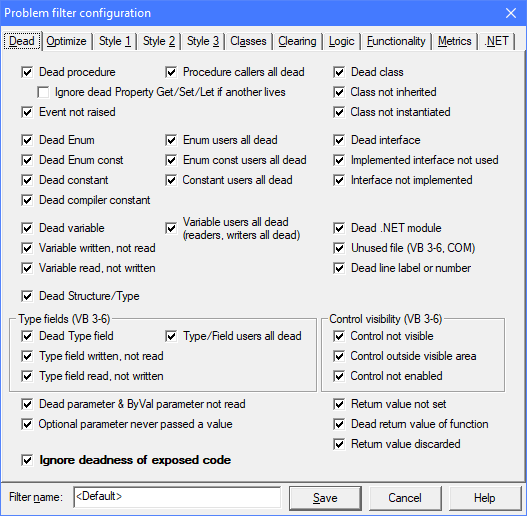
Not all of problems Project Analyzer reports are equally important. Programmers have different opinions. Want to allow GoTo? That's all right! Project Analyzer lets you choose the review rules you want to use.
Press the Problem options button to open up the Problem options dialog box. Here you can enable/disable any problem rule and create a set of filters for code review purposes. You can also access this feature via the Options menu.
In Problem options you can create quick check filters and strict filters for giving your code a final polish. You can create filters for specific tasks, such as hunting down resource leaks or catching missing error handlers, or for scenarios such as evaluating some code you are planning to purchase. You can apply a crude filter to a spaghetti project and a strict filter to a polished project. You can use one filter on a daily basis and the other before release. You can also prepare a special filter for the auto-fix feature.
Built-in filters. A set of predefined filters is available. The filters are described in the table below. You cannot edit the built-in filters, but you can duplicate them and edit the copy.
Creating your own filter. Press to create a new filter from scratch. If you wish to use an existing filter as a starting point, press the button. You can now configure a new filter and save it with a new name.
| <Default> | This default filter is applicable to most systems. It enables approximately a half of the available review rules. Use it as a starting point for configuring your own filters. |
| <Dead code> | Report dead and semi-dead code. Ignore exposed code. This filter reports the certainly dead code. Good choice for both stand-alone and library projects. |
| <Dead code + exposed> | Report dead and semi-dead code. Include dead but exposed code. This filter reports all potentially dead code for library projects. |
| <Flaw finder> | Report potential flaws in the code. A flaw may lead to incorrect or missing operation now or later. Use to locate existing mistakes and to prevent new mistakes from creeping in. |
| <Functionality> | Report problems affecting the behavior and user interface of your application. |
| <Hide all problems> | Disable all problem detection rules. Your code will appear to have really high quality. |
| <Logic> | Report logic flaws: oddities in the control and data flows of your program. |
| <Project NameCheck> | Report naming standards issues only. |
| <Optimizations> | Report optimization issues and dead code. |
| <Project NameCheck> | Report naming standards issues only. |
| <Strict - show all problems> | Enable all code review rules. This filter is not very practical since it shows a really high number of problems. |
| <Style> | Report style suggestions, including clearing of variables and API handles, class design rules and Project NameCheck naming standards. |
| <VB.NET Compatibility> | Report all VB.NET compatibility related problems. Available for VB 3-6 code in the Enterprise Edition. |
| <VB.NET Fix before upgrade> | Report those VB.NET compatibility related problems that should be fixed before upgrading to VB.NET. Available for VB 3-6 code in the Enterprise Edition. |
You can change the current filter at any time. You don't need to reanalyze the source after selecting a new filter or reconfiguring it. Project Analyzer will refresh the analysis according to the selected filter automatically.
Use the and buttons in Problem Options to copy a problem filter from a computer to another. Export creates a .flt file which you can then import to Project Analyzer on another computer. You should import a .flt file to the same Project Analyzer version only. This way you make sure that all settings are imported correctly. Some of the problem detection rules and settings may change at a version update, even if it is a minor update.
The button is disabled for the predefined filters, because all Project Analyzer users already have those filters.
Click the  Select files button to ignore problems in certain files.
By default, Project Analyzer shows problems for all files.
Unselecting files in this dialog will hide all problems in those files. Problems in those unselected files will be hidden completely. This is useful if you want to ignore problems in certain files (perhaps ones you didn't write) or if you want to work on a handful of important files and disregard the rest. This feature is also useful in a large system where the number of problems is very high, and you want to work on a subset of files at a time while analyzing the entire system for maximum accuracy.
Select files button to ignore problems in certain files.
By default, Project Analyzer shows problems for all files.
Unselecting files in this dialog will hide all problems in those files. Problems in those unselected files will be hidden completely. This is useful if you want to ignore problems in certain files (perhaps ones you didn't write) or if you want to work on a handful of important files and disregard the rest. This feature is also useful in a large system where the number of problems is very high, and you want to work on a subset of files at a time while analyzing the entire system for maximum accuracy.
By default, the file selection you make is not stored between analyses. You can persist the selection by checking the Save selection checkbox. This is useful if you want to continue to work on a set of files and reanalyze it every now and then.
Notice that the hiding of problems affects many features of Project Analyzer. Your code may suddenly appear to have risen in quality just because you hid the problems in it.
Comment directives are specially formatted comments that you can write to hide problems in a line or block of code.