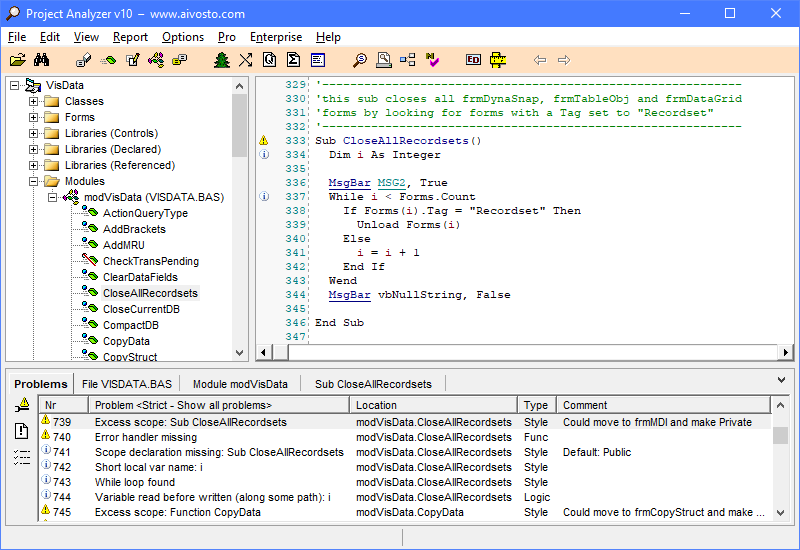
Click buttons and areas in the window to jump to related help.
| A. Project tree | B. Hypertext view |
| C. Details panel | |
Click buttons and areas in the window to jump to related help.
| A. Project tree | B. Hypertext view |
| C. Details panel | |
The Project tree on the left lets you navigate your project(s). Right-click a file, module or procedure for a popup menu. Double-click a graphics file (.frx file or picture) to view it.
| Class info | Open Details panel for selected item. |
| Call trees | Display call trees for selected item. |
| References | Display the References to window. |
| Project Graph | Open selected item in Project Graph. |
| Module members | Get Module members report for selected module. |
| Problem report | Get Problem report for selected file. |
| Export... | Export code to syntax-formatted file. |
| Export as PDF... | Export code to syntax-formatted PDF file. |
| Print... | Print the code, syntax-formatted. |
| Full file view | View the entire file, if not in view already. |
| Directory paths | Group files by type or by directory path. |
Surf your code in the hypertext panel. Your code is automatically color-coded and hyperlinked by Project Analyzer. Click the highlighted words and icons:
| Enum EMyEnum | Jump to declaration of selected item. |
| Highlight EMyEnum | Highlight the word to spot local references. |
| Report EMyEnum | Create a report of the selected item. |
| References | Display the References to window. |
| Back | Go back in page history. |
| Forward | Go forward in page history. |
| Copy | Copy code to Clipboard, syntax-formatted. |
| Copy as HTML | Copy code as raw syntax-formatted HTML. |
| Export... | Export code to syntax-formatted file. |
| Export as PDF... | Export code to syntax-formatted PDF file. |
| Print... | Print the code, syntax-formatted. |
| ✔ Line numbering | Toggle line numbers on/off. |
| ✔ Line numbering in copy | Toggle line numbers in Copy to Clipboard. |
You can fine-tune the hypertext view by selecting Hypertext options in the Options menu. You can configure the colors, the underlining of links, the strikethrough effect on dead code and toggle line numbering on/off.
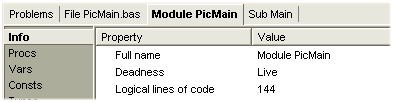
Detailed information about the currently selected piece of code is to be found at the bottom of the main window.
 |
Dead code. The red line means that the code is dead. See Terminology. |
 |
Exposed code. The violet X means that the code is not used by the currently analyzed project(s). It can still be in use by another, unanalyzed project. The deadness status is thus unknown. |
    | These problem icons indicate a problem found in code review. Left-click or right-click the icon for more information. |
You can open a full legend of all the icons in the Help menu.
You can copy the currently visible code to the Clipboard by pressing Ctrl+C. Alternatively, select Copy in the Edit menu. To copy just a small snippet, select some code and press Ctrl+C. The code is copied both as plain text and formatted (RTF). You can paste the formatted text to a word processor for professional-looking instant documentation.
Copy as HTML. The Edit menu also contains the option to Copy as HTML. This command copies the code to the Clipboard as raw HTML. The HTML code contains your source in color-coded format just like in Project Analyzer, making it ideal for publishing code snippets on the web. Just paste the HTML code to an HTML file and you're done. Hyperlinks are not preserved this way. Use Project Printer to publish hyperlinked source as HTML.
You can optionally include line numbers in the Clipboard copy. Check the Linenums in copy setting in Hypertext options.
You can export your source code in a variety of file formats or print it on paper. Available formats include PDF, HTML, RTF, UTF-8 and plain text. For PDF export and printing, see their specific help topic.
The Export command in the File menu saves the current source code into a syntax-formatted document file as HTML, RTF, UTF-8 or plain text. HTML is ideal for publishing code snippets on the web. Both RTF and HTML are suitable for documenting your code with a professional look. Export always saves the currently viewed portion of code, meaning the current procedure, module or file. Select some lines to export just the selected lines.
If line numbers are currently visible, Export will save line numbers in the file as well. Toggle line numbering on/off by right-clicking the hypertext area and selecting Line numbering.
Character set support. The other export formats are Unicode aware, but plain text exports 8-bit Ansi text.