 Visustin – Print flow chartsVisustin – Print flow charts
Select Print Preview in the File menu or press  to bring up the Print Preview window.
Print the picture with to the selected printer with the current options.
Configure printer settings. Select another pringer, page size and orientation.
Size. Use this dropdown list to scale down a large chart to less pages. A factor below 100% squeezes the chart. Too low a scale makes text hard to read. After selecting a new scaling factor, press the button to re-flow the chart according to page breaks. Numbers such as 1x2 or 2x3 in the list suggest optimal scaling factors to reach the indicated number of pages.
Portrait/Landscape. Set page orientation. Wide charts work better on landscape, while portrait is better for tall ones. Press after changing page orientation to re-flow the chart to take advantage of the new setting.
After selecting a new page size, page orientation, printer or scaling factor, press this button to re-layout the chart. Visustin minimizes the number of symbols and links that need to cross page borders.
Position by dragging. You can drag the flow chart to move it. Move the mouse pointer over the flow chart and drag by keeping the left mouse button pressed. This feature is intended to center or otherwise position small flow charts.
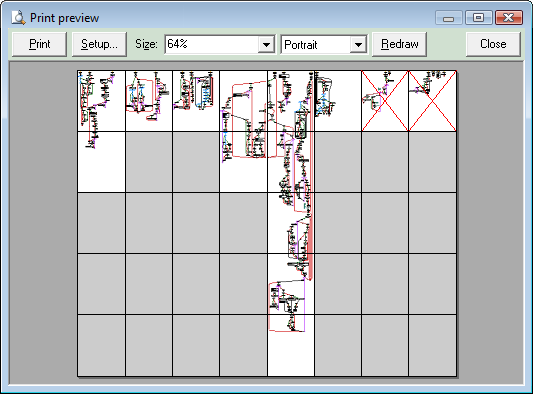
Empty pages. A multi-page chart may include empty sheets. Visustin detects them. They are greyed out in the print preview. Empty pages are not printed.
Exclude pages from being printed. Avoid printing unnecessary pages by right-clicking the undesired pages. A red cross (X) over a page indicates it will be excluded from the printout (see screenshot above). Right-click again to enable printing.
Margins. Visustin detects the printable area of your printer and displays page margins automatically. Most printers have a physical margin where programs cannot print. Visustin uses all the available area but cannot print in the margin area. You can see the margins in the preview (not visible in the screenshot on this page). If you construct a multipage mosaic, you will notice the margins on the printed sheets.
Flow charts are often larger than a sheet of paper. There is a limit to what one can reasonably fit on a page or a few pages. To print a large flow chart, use this combination of tricks for the best results.
button.Starting with Visustin v6, all print-outs are in high-quality vector format. What is more, Visustin will layout the print-outs to minimize the number of symbols and links that cross page borders. Visustin can even save as PDF. Saving as PDF will actually create a better PDF than printing to a PDF driver.
Printing is disabled in the demo version.
©Aivosto Oy · Visustin Help