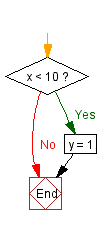
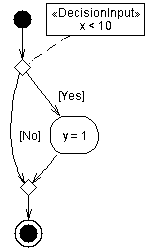
If x < 10 Then
   y = 1
End If
Visustin comes with an extensive set of options. You access the options through the Options menu. You control the appearance of the generated charts through these options. Many of the options, but not all, also affect Visio export.
The Reset to defaults command restores all options to their default values. It does not affect any settings in the Configuration sub-menu, though.
Visustin produces two types of flow diagrams: Conventional flow charts and UML style activity diagrams. Both options include the same information using different symbols.
Note: Flow chart style (default) and Flow chart alternative style are identical in Visio export.
| Sample code | Flow chart | UML |
|---|---|---|
If x < 10 Then y = 1 End If |
|
|
The Compression options let you control the amount of text displayed in the diagrams. By compressing you can keep the charts smaller while preserving the key information.
Tip 1. To create a small but understandable flow chart, select Shorten code together with Full comments.
Tip 2. To create a comment flow chart without the code, select No code together with Full comments.
Visustin displays source code comments in charts. This option is enabled for most programming languages. Comments help understand what the program does. The Comments option controls where the comments appear or if they are hidden:
Several programming languages support compiler directives, or preprocessor instructions, to set compiler options and to selectively compile different versions of the same code. You have the following options to handle compiler directives for the languages supporting them:
#if..#else) are shown as if they were regular executable decisions. In languages supporting repetitive compilation (such as %rep in MASM), repetition directives are shown as regular executable loops. All other compiler directives are shown as comments.
Limitation: The Show as flow symbols mode cannot always produce a reasonable flow chart. It works best with conditional compilation blocks not exceeding procedure boundaries. Where conditional compilation is used to selectively compile entire procedures or classes, use the Show as comments mode instead.
This option is disabled for languages having no compiler directives.
The Wrap lines option controls word wrapping inside the chart symbols:
You may find that certain languages read better when the option is unselected, or that your charts look better when the option is selected.
This option is disabled if the code would become incomprehensible when wrapped. This is the case with old fixed-format RPG code.
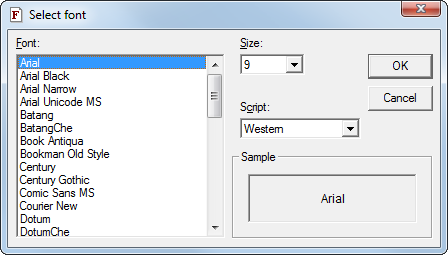
Select the font for your code. Due to compatibility reasons, a limited number of fonts is available.
Certain languages require a fixed-width font in order to preserve column formatting. These languages include COBOL and Fortran fixed format, JCL and PL/I. In these languages, you can select any font for the flow chart, but the code view remains in a fixed-width font.
The Script setting of the font is important for the loading and display of national and special characters. Read more in Source encoding and Font script.
Due to technical limitations, not all fonts can be used for Chinese, Japanese or Korean on some Windows systems. Choose Arial Unicode MS if you experience problems.
Shortcut: To quickly increase the font size, press Ctrl+>. To decrease, press Ctrl+<.
See Source encoding and Font script.
Define TAB character width as the number of spaces per tab stop. The default setting is 8 spaces. Visustin replaces TAB characters by the correct number of spaces in order to keep the code properly tabulated.
The Tab stops setting has no effect on certain languages. In that case you will see a message about that in the Tab stops dialog. These languages either have fixed tab stops (such as Python or fixed format Fortran), or the TAB character has a specific meaning in the language (such as in ksh).
You can define a hotkey that brings Visustin to the foreground when you're in another program. This is useful if you want to repeatedly switch between your code editor and Visustin. Select Hotkey in the Options menu. The hotkey only works when Visustin is already running, it doesn't start Visustin if it's not running.
This option lets you configure the colors and labels appearing in your charts.
By default, Visustin does not associate itself with any file extensions. Associating Visustin with a file extension means you can right-click a file in Windows to open it in Visustin. You can select the associated file extensions by yourself. You can associate source code files, image files and job files.
Goal: Right-click a source code file in Windows Explorer. Select Flowchart to view it in Visustin.
To associate source code file types with Visustin, choose Configure|Associate code files... in the Options menu. For each source file extension, define the language and then associate it with Visustin. Example to associate .c files with Visustin:
The Extensions field accepts one or more file extensions. Separate extensions by semicolon (c;cpp). Press the to get a default set of file extensions for your programming language.
To remove an association, remove the appropriate file type from the list and press .
Technical details: Visustin will add a Flowchart verb for the selected source file types.
Other file associations let you associate image files, flow chart files and job files with Visustin.
Goal: Right-click an image file in Windows Explorer. Select Open to view the image with Visustin. Select Print to print it. Drag and drop the file on a printer icon to print it on that printer.
To associate image files with Visustin, choose Configure|Associate other files... in the Options menu. To have Visustin open an image file type, simply select the checkbox next to the desired type(s). To remove the association, unselect the box. You also have the option to make Visustin verify the associations each time it starts, in case another application has taken over the selected associations.
Technical details: Visustin will add/redefine the Open, Print and PrintTo verbs for the selected image file types.