Visustin – Save flow charts
Help » Features » Save
To use the flow charts in your documentation you can save them in several file formats and copy them to the clipboard.
Save formats
Visustin can save and export the flow charts in a multitude of file formats. You can save the charts as documents, bitmaps, in vector format, as a web page or export directly to other applications.
* Requires Pro Edition.
Choosing a format that fits the use
| Show to boss | PDF (single page or multipage) |
| Print | PDF (printer pages) |
| Import in word processor | EMF, PNG, Word |
| Publish online | PDF, PNG, HTML |
| Edit | FLW, Visio |
| Store for later reference | PDF |
| Store code with chart | PNG, TIFF, MHT |
| Store all charts in one file | TIFF, MHT |
| Use with GraphViz tools | DOT |
PDF is the best file format, quality and file size considered. Of regular bitmap formats, PNG and GIF are the best ones. JPEG is not a good option because it offers both inferior quality and a larger file size.
Troubleshooting. If saving a large chart fails, you may have exceeded the capabilities of the file format or your computer. Try saving as PDF instead. More about large charts
Publication formats
PDF is the best format to view, distribute and archive your flow charts. Zoom in and navigate. PDF charts come with a high-quality vector format and a surprisingly small file size. Give PDF flow charts to your boss or colleagues. Create PDFs as your project documentation.
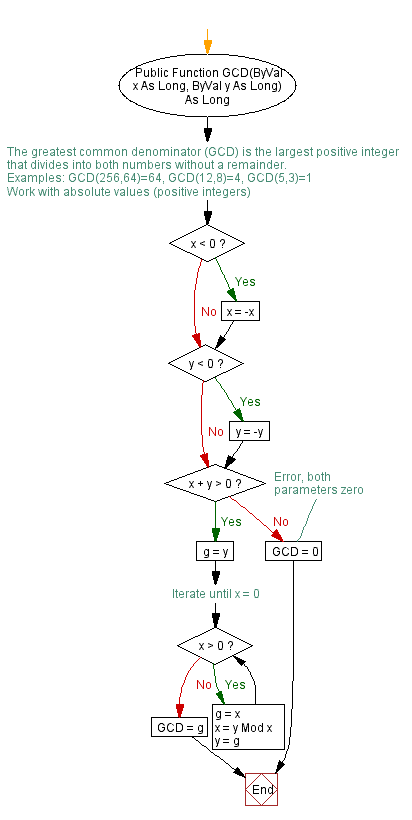
- PDF, single page. PDF for the monitor. This is a zoomable PDF, ideal for viewing flow charts on the screen. The single page version puts the entire chart on a single page without any nasty page breaks. Larger charts typically occupy areas larger than the page size of any available printer. PDF sample chart
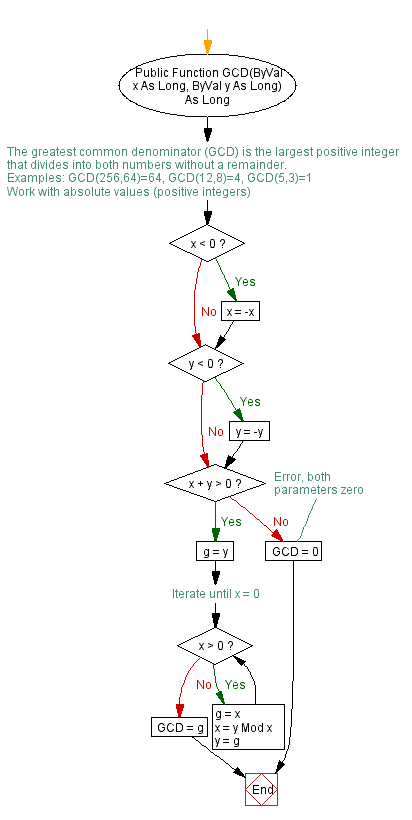
- PDF, multipage. Alternative PDF for the monitor. This is another zoomable PDF for viewing on the screen, split into several pages. Each individual flow chart, such as a function or subprogram, appears on its own page. Actual paging depends on the programming language. PDF multipage sample
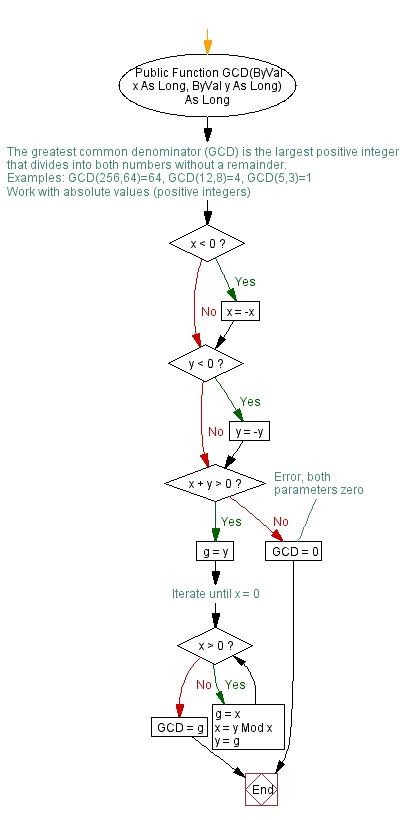
- PDF, printer pages. PDF for print-outs. This is a mosaic-style PDF, where large charts are split on several pages. The font size stays normal no matter what size the chart is. Print the chart and hang it on your wall as a mosaic.
Control the page size in the "multipage" and "printer pages" PDFs through Page setup in the File menu. The default page size is that of your printer, commonly Letter or A4. You can use any other size. You can also switch to Portrait or Landscape mode.
The "single page" and "multipage" PDF versions are designed for on-screen use and do not generally print well. Use the "printer pages" option for print-outs.
Bitmap formats
Bitmap file formats are useful for all kinds of documentation.
- PNG bitmap. Use this format for your documents and web publication. PNG offers the best quality/size ratio, which is especially good for web use. PNG sample chart
- BMP bitmap. Use BMP for your documents. Import it in a word processor, for example. This format is widely supported by virtually all Windows programs. BMP sample chart
- GIF bitmap, the old web standard format for drawings. GIF is appropriate for your documents and web publication. GIF is widely supported by other programs. GIF has some technical limitations. Its image area is limited to 65,535 pixels. GIF is not compatible with Visustin Editor gradient colors (Full color mode). Instead of GIF, consider PNG as it doesn't suffer from the limitations of GIF. GIF sample chart
- JPG JPEG bitmap. This photo format is not recommended for flow charts. It provides large files and less than perfect quality. JPG is supported for compatibility with other applications. JPG sample chart
- TIFF bitmap. Use this format for your documents. TIFF is a standard with many imaging and document archival programs. TIFF sample chart
Office documents
Vector formats
Vector formats are good for exporting pictures that need to be resized or edited. The picture consists of lines and other shapes. Vector formats typically takes less memory and allows lossless zoom in/out. Not all programs support vector files.
- EMF Enhanced Metafile. Use EMF to import in a word processor or slide show. EMF and WMF are very similar formats. EMF is slightly better for flow charts. EMF sample chart
- WMF Windows Metafile. A lot of Windows applications support WMF metafiles. You can import metafiles to a word processor, for example. WMF sample chart
- DOT is a graph language. Visustin uses it internally. It can be displayed, converted and edited with Graphviz. This is a free technical program suitable for those interested in programmatic graph generation.
Web pages
- HTML This option generates a web page. There is a chart on top and the source code at the bottom. This option actually creates two files, a PNG flow chart and an HTML page. You can publish the page on your intranet, for example. HTML sample chart
- MHT Web Archive is similar to HTML, but a single file holds both the page and the chart image. MHT is compatible with Internet Explorer. MHT sample chart
HTML is optimized for Internet Explorer 10+, Firefox and Chrome. MHT is optimized for Internet Explorer 10+.
Bulk flowcharting multi-image formats
Pro Edition only
The following file formats are specific to the bulk flowcharting feature. These formats save several images in a single file. This makes it easy to archive a group of related flow charts. As an example, you can document a small program in a single file.
- TIFF archive is a regular multi-page TIFF image. Many image viewers, but not all, support multi-page TIFF files. TIFF offers the best multi-page compatibility across viewers making it the best format for archiving several charts in one file.
- MHT (multi-image archive) contains several flow charts together with the source code. With this option you can keep related charts in one file along with the code the charts were created from. MHT is compatible with Microsoft Internet Explorer. MHT multi-image sample
Visustin Editor format
Pro Edition only
- Visustin Editor (.flw) is the native editable flow chart format of Visustin Editor. You can save editable flow charts and load them in the Editor to work with them. After you have edited a .flw file, you can save it as .flw or another format. Sample.flw (save and open in Visustin)
Read-only file formats (legacy support)
Earlier versions of Visustin saved in the following file formats as well. The current version of Visustin can read existing files, but it does not save in these formats.
- PCX bitmap. This format offered compatibility with applications that read PCX images.
- DCX archive. This format contained several PCX bitmaps.
- PBM Portable Bitmap (black & white). Monochrome version of PPM. PBM was available in Editor only.
- PGM Portable Greymap. Grayscale version of PPM.
- PPM Portable Pixelmap (color bitmap). This format offers compatibility with (Unix) applications that read PPM images.
- TGA Targa bitmap. This format offered compatibility with applications that read TGA images.
- GIF with source code (*.code.gif). This format extended the GIF image by adding the original source code in the file. View the code by opening the file in Visustin.
- GIF archive (*.gif) contained several GIF flow charts. View the charts by opening the file with Visustin. Many other applications support multi-image GIFs, but they are likely to display it in a slide show fashion.
- GIF archive with code (*.code.gif) contained several flow charts along with the original source code they were created from. View the charts and the code by opening the file with Visustin.
- PNG with source code (*.code.png). This format saved a standard PNG image with source code. View the code by opening the file in Visustin or another imaging application that displays PNG text fields.
- PNG with Visustin flow chart (*.flw.png). This format is a standard PNG image which also contains an Visustin flow chart. In order to edit the chart, load it back to Editor. (Saving was supported up to Visustin Pro v7.x. You can still load it in Editor, but to keep your changes editable, you need to save it as FLW.)
- TIFF with source code (*.code.tif). This format saved a standard TIFF image with source code. View the code by opening the file in Visustin.
- TIFF archive with code (.code.tif) contained several flow charts along with the original source code they were created from. View the charts with any multi-page TIFF viewer. View the code by opening the file with Visustin.
The "with code" formats saved original source code along with the flow chart. You can view the code by opening the file in Visustin. This way you get to see the original code even if you have changed the program meanwhile. Images in the "with source code" files are fully compatible with all applications. The source code in the files is not standards compatible. Other applications are unlikely to display the source code. They will display the image, but not the code in it. See also: Extended file formats
See also
Saving is disabled in the demo version.
©Aivosto Oy · Visustin Help